
ICT
Skills – II.
A comprehensive curriculum lesson covering digital devices, mobile controls, hardware architecture, operating systems, file management, the Internet, and cybersecurity based on the NCERT Class 10 Employability Skills framework.
What you will learn.
From hardware operations and mobile gestures to file systems and online safety, this lesson equips students with core competencies required in modern workplaces and CBSE board examinations.
Smartphones, tablets, hardware buttons, notification trays, home screen navigation, and touch gestures.
Input-Process-Output cycle, CPU architecture, RAM vs ROM, secondary storage, and computer connection ports.
Booting sequence, BIOS/POST, operating systems, file extensions, folder hierarchy, and keyboard shortcuts.
Web browser functions, URL structure, email communication, netiquette, malware defense, and data protection.
Information & Communication Technology, step by step.
Read through each session carefully. The explanations connect textbook theory directly with practical examples, clear hardware diagrams, and board-exam principles.
1. Mobile Computing and Applications
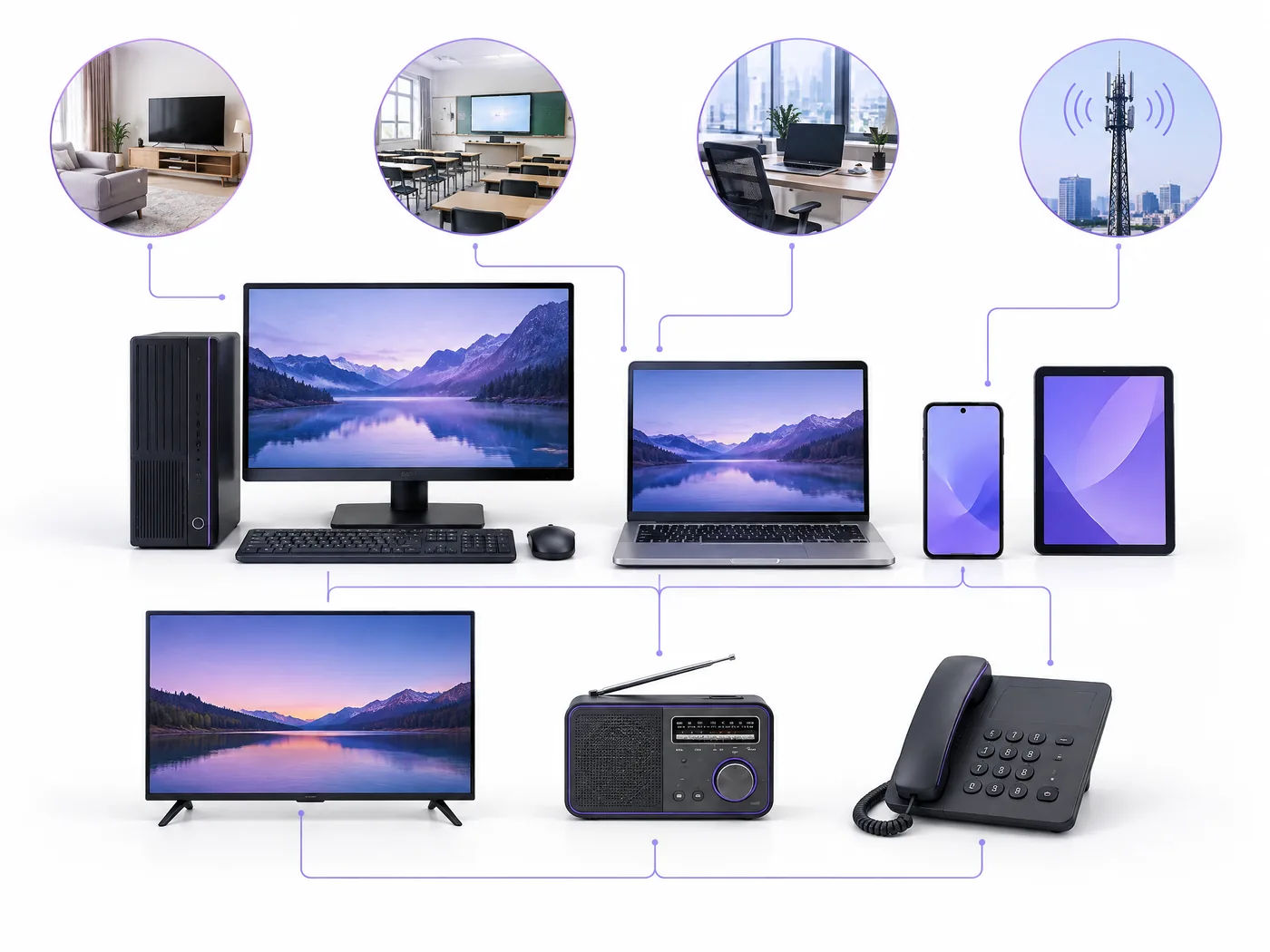
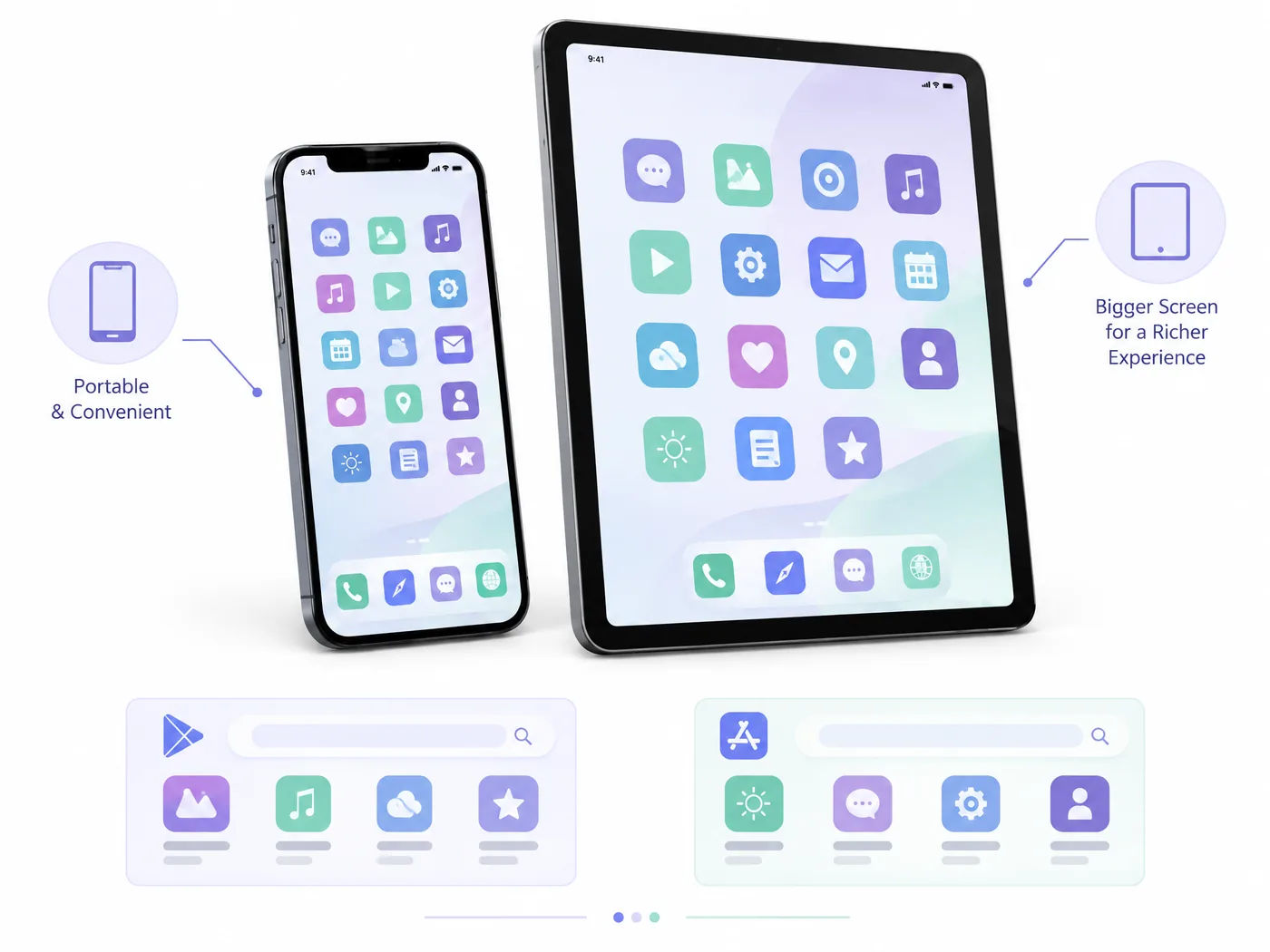
ICT (Information and Communication Technology) refers to all methods, tools, and concepts related to storing, recording, and transmitting information in digital form. While traditional computers rely on desktop towers and laptops, portable handheld devices such as smartphones and tablets have transformed how we access information.
A mobile device runs on specialized operating systems (such as Android or Apple iOS) and performs computational tasks through lightweight programs called Mobile Apps (Applications). Apps are downloaded through centralized platforms like Google Play Store or Apple App Store to assist with communication, education, document editing, and navigation.
Physical and Virtual Mobile Controls
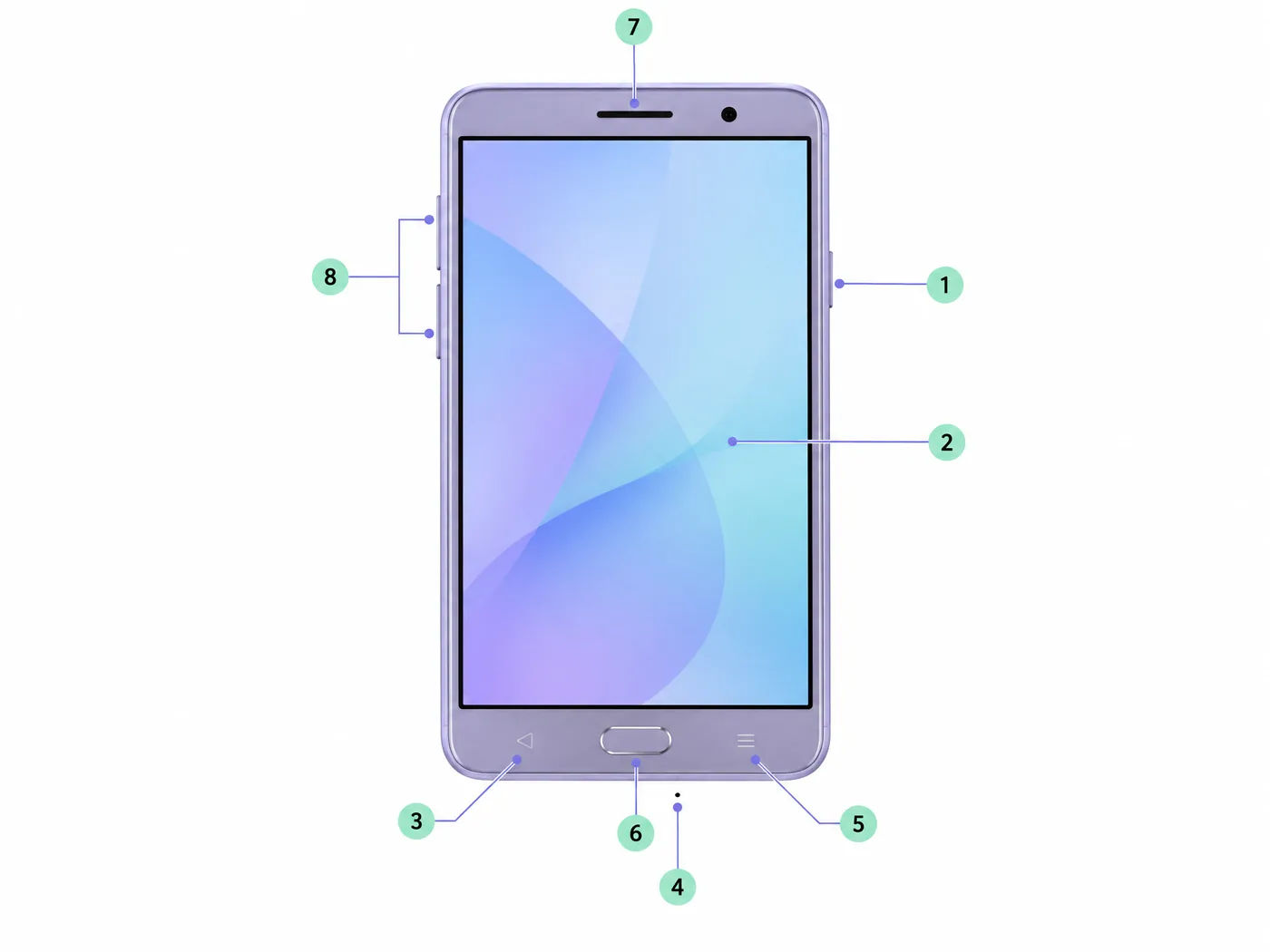
Modern mobile devices balance physical hardware buttons with software-driven on-screen navigation keys:
- Power Button: Used to turn the phone on/off, lock the screen, or wake up the device. Long-pressing displays options like Restart, Power Off, and Emergency Call.
- Volume Rockers: Two physical switches (Volume Up and Volume Down) that regulate call ringtones, media playback, and system alert volumes.
- Back Button (Virtual/Gesture): Returns you to the previous screen or webpage within an application.
- Home Button: Instantly exits any running application and returns to the primary Home Screen.
- Recent Apps (Multitasking Key): Shows all currently opened background applications in a card stack, allowing quick switching or closing apps to free RAM.
Mobile Home Screen Layout
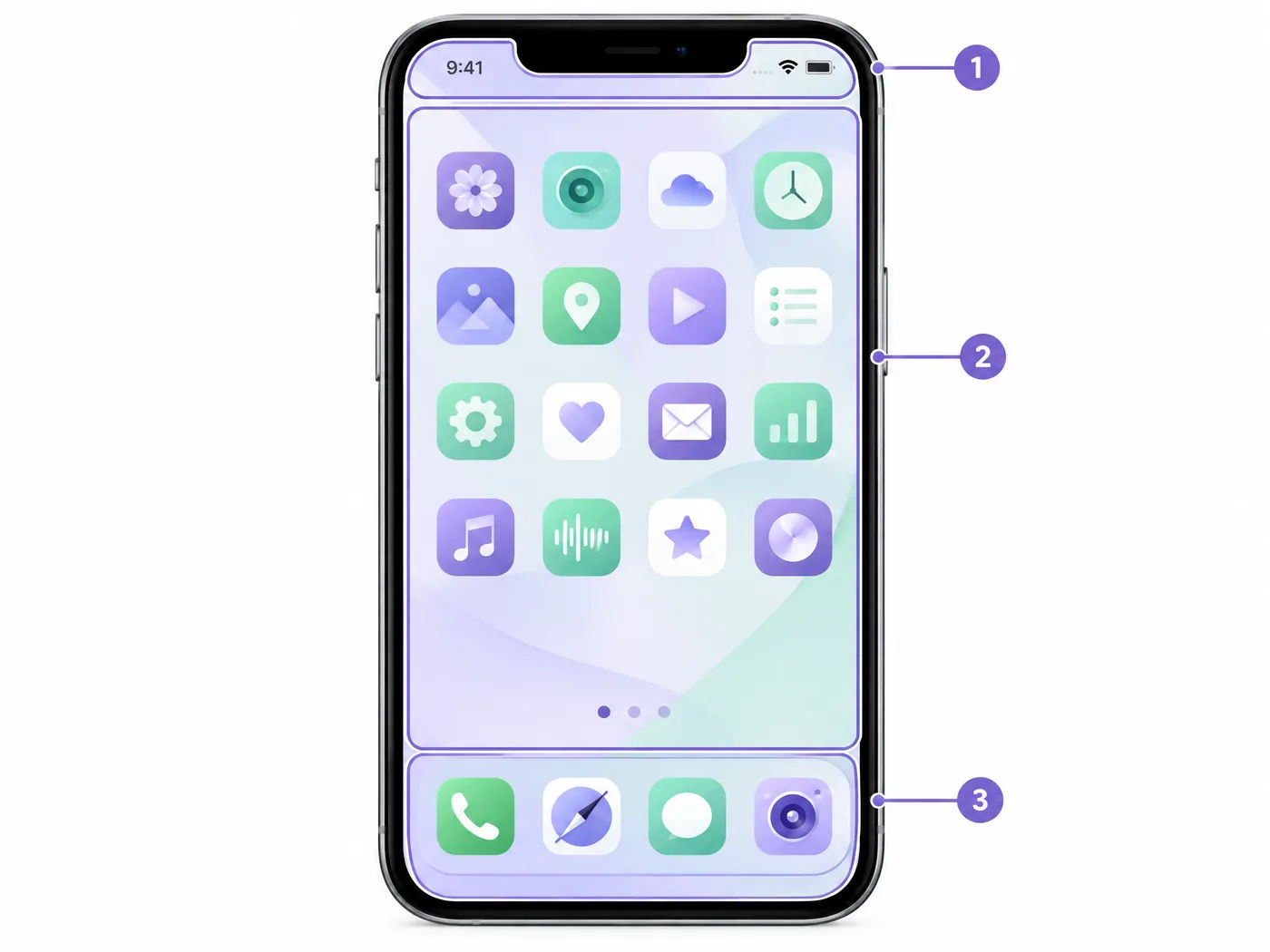
The Home Screen serves as the central control dashboard for mobile devices. Key components include:
- Status Bar: Located along the top edge of the screen; displays vital system metrics including battery percentage, network signal strength, active Wi-Fi, Bluetooth, and the current clock time.
- Notification Drawer / Panel: Swiping down from the top edge reveals unread alerts (incoming messages, app updates, missed calls) along with quick setting toggles for Wi-Fi, Airplane Mode, Flashlight, and Mobile Hotspot.
- App Icons and Widgets: Icons launch installed applications, while widgets display live dynamic data (such as weather forecasts, calendar events, or search bars) without opening the app.
- Dock (Favorites Tray): A persistent row of icons at the very bottom of the screen that remains visible across all home screen pages for immediate access to essentials like Phone, Messages, Browser, and Camera.
Touchscreen Gestures
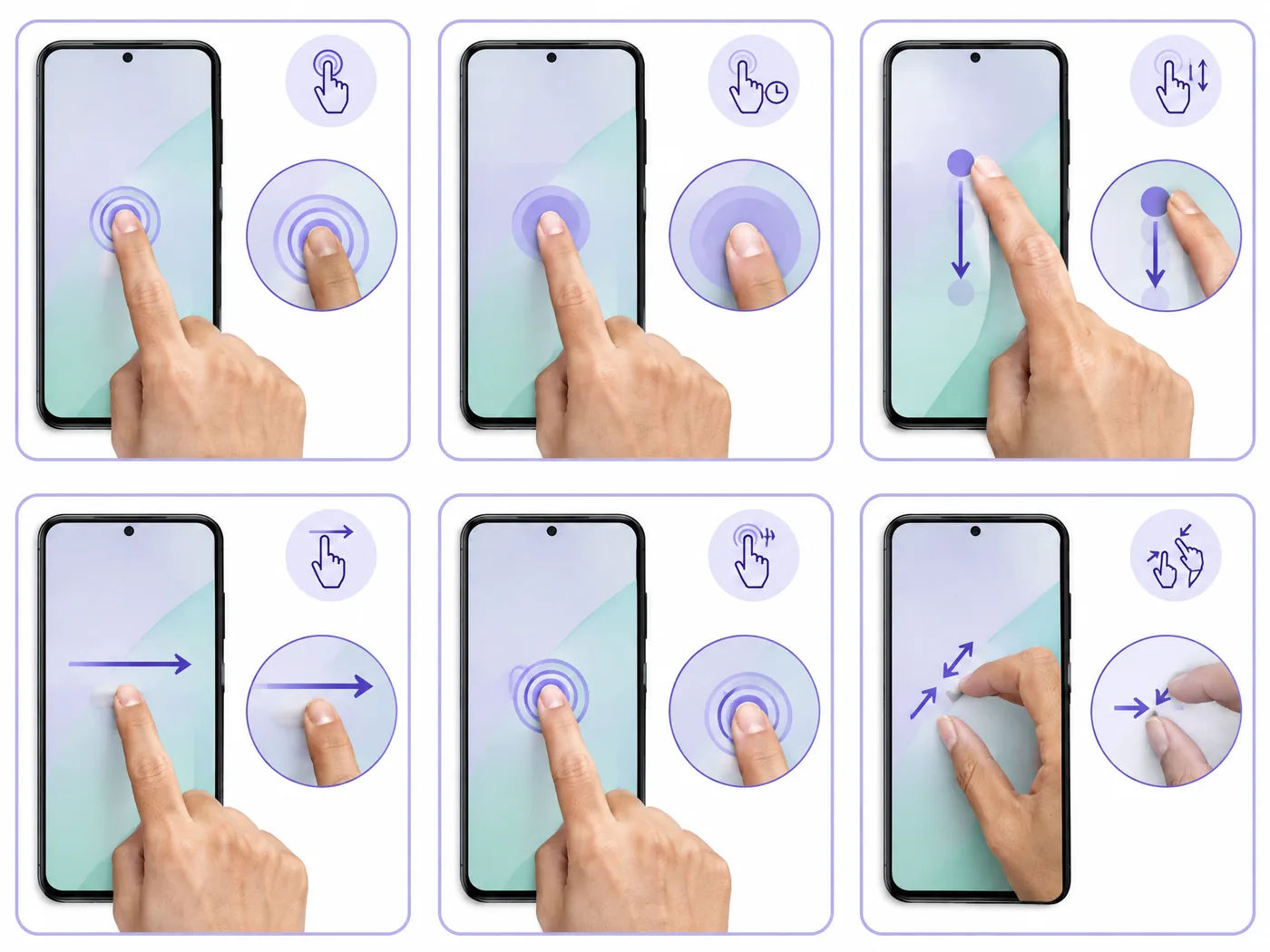
Touchscreens eliminate the need for a physical mouse by interpreting finger motions on the display glass:
| Gesture | How to Perform | Common Action / Use Case |
|---|---|---|
| Tap | Touch the screen briefly once with a fingertip. | Opens an application, activates a button, or positions a text cursor. |
| Double Tap | Tap rapidly twice in the same position. | Zooms in or out on maps/photos; selects an individual word in a text document. |
| Touch & Hold (Long Press) | Place finger on screen and hold for 1–2 seconds. | Opens contextual options (e.g., Delete, Move, Share, or Home Screen widget settings). |
| Drag / Slide | Press an item and move finger across screen without lifting. | Repositions app icons, adjusts sliders (e.g., screen brightness), or selects text ranges. |
| Swipe / Flick | Slide finger quickly across screen horizontally or vertically. | Scrolls through web pages, flips e-book pages, or switches camera modes. |
| Pinch (Zoom In / Out) | Place two fingers on screen and spread them apart or pinch together. | Pinching outward zooms in; pinching inward zooms out on photos, PDFs, and maps. |
2. The Input-Process-Output (IPO) Cycle
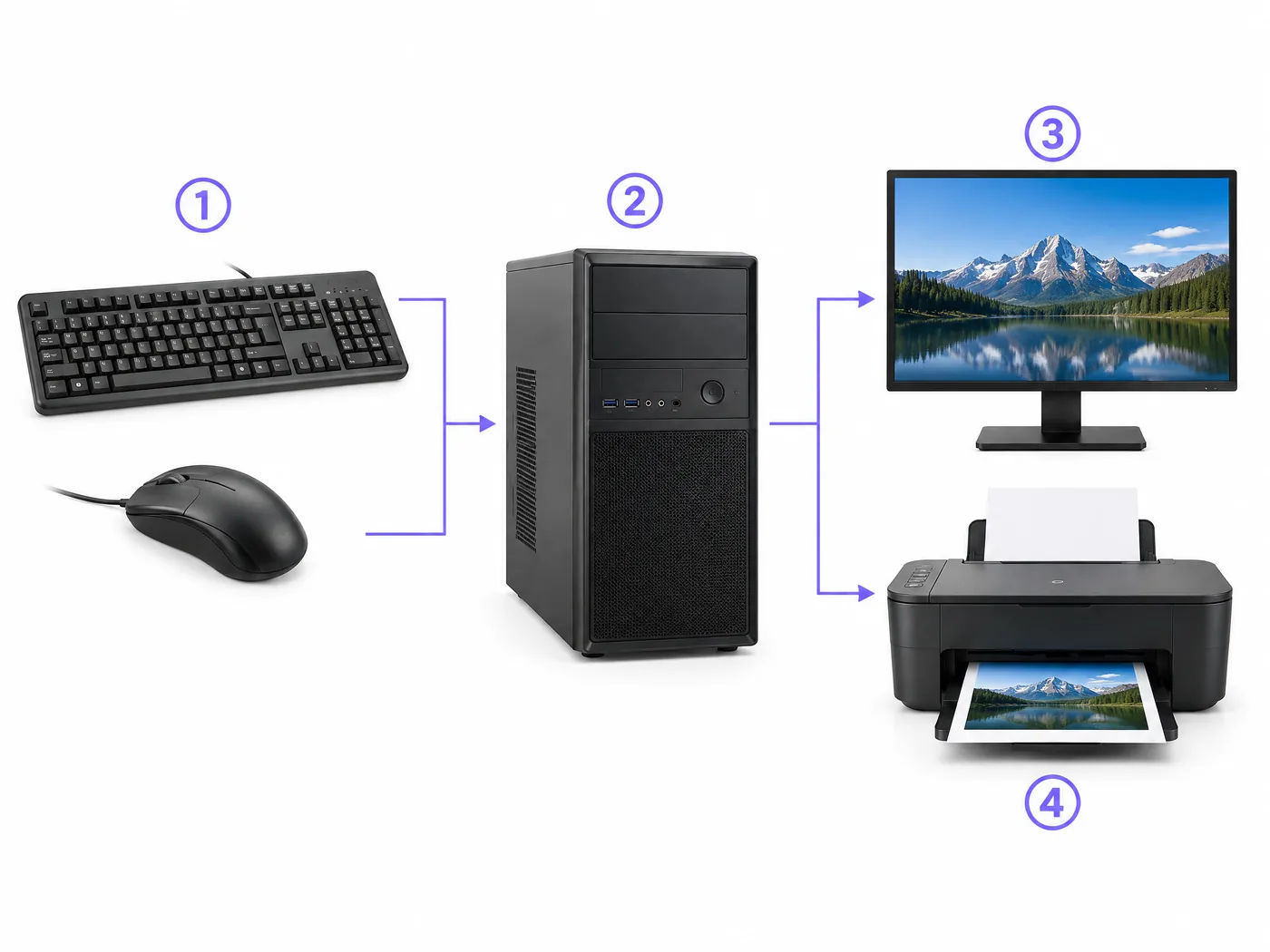
Every computer, from microcomputers to supercomputers, operates according to the universal Input-Process-Output (IPO) Cycle:
- Input: Raw data and user instructions are fed into the system through input peripherals (e.g., typing text on a keyboard).
- Processing: The Central Processing Unit (CPU) receives the raw data, executes logical and mathematical computations, and manipulates the information according to program rules.
- Output: The processed results (meaningful information) are presented to the user through output devices (e.g., displaying characters on a monitor or printing on paper).
- Storage: Data and results are written to non-volatile secondary media (such as hard disks or SSDs) for future retrieval.
Peripheral Devices: Input vs. Output
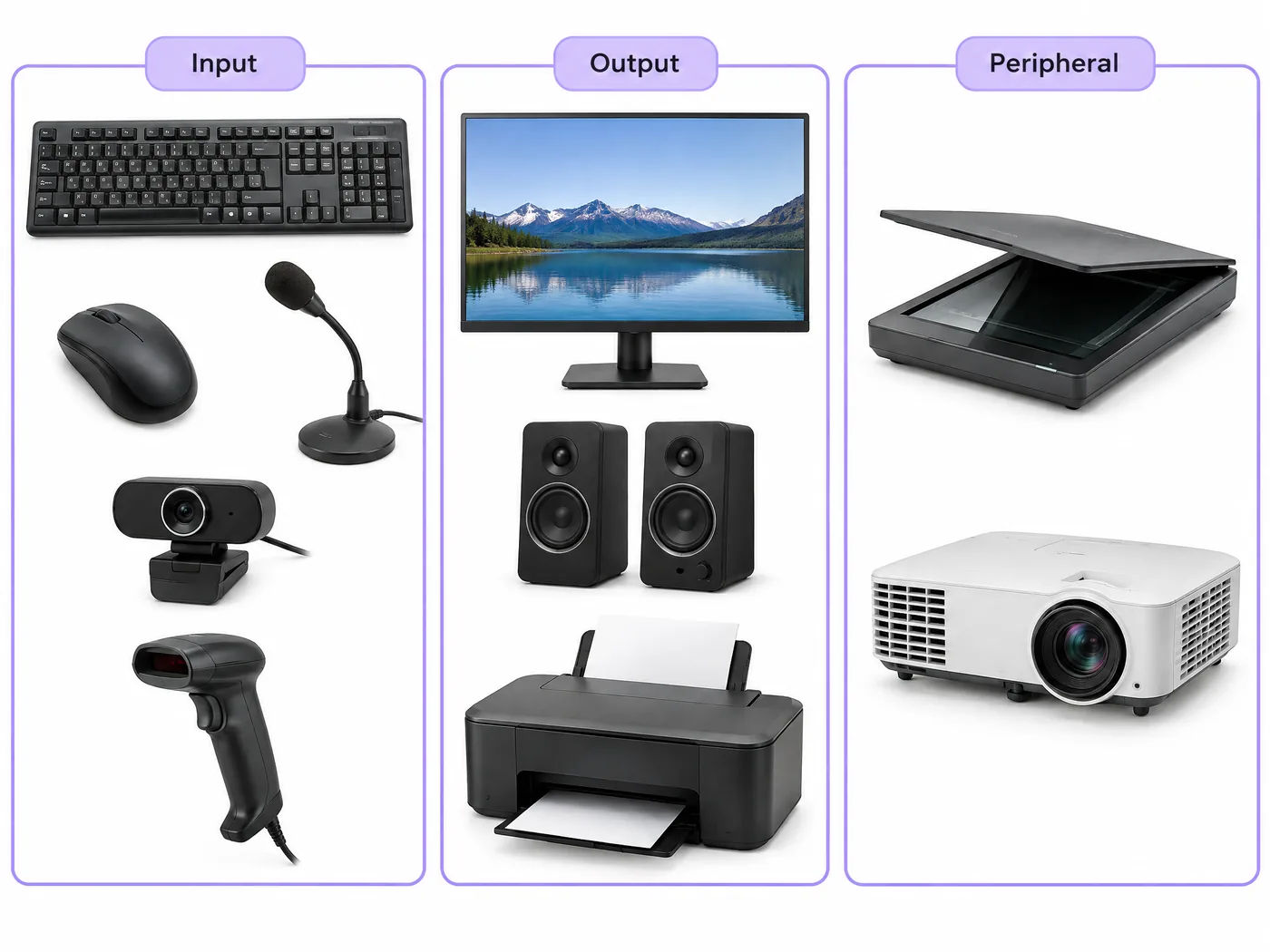
Hardware attached externally to the computer system unit is categorized based on whether it sends data in or receives data out:
| Category | Device Examples | Primary Function |
|---|---|---|
| Input Devices | Keyboard, Mouse, Graphic Tablet, Flatbed Scanner, Barcode Reader, Microphone, Webcam | Captures real-world text, coordinate clicks, printed documents, audio, and video into digital machine-readable signals. |
| Output Devices | Monitor (LCD/LED/OLED), Laser/Inkjet Printer, Audio Speakers, Headphones, Multimedia Projector | Converts binary data into human-perceivable forms like visual display pixels, printed hard copies, and sound waves. |
Internal Architecture: CPU, RAM, ROM and Storage
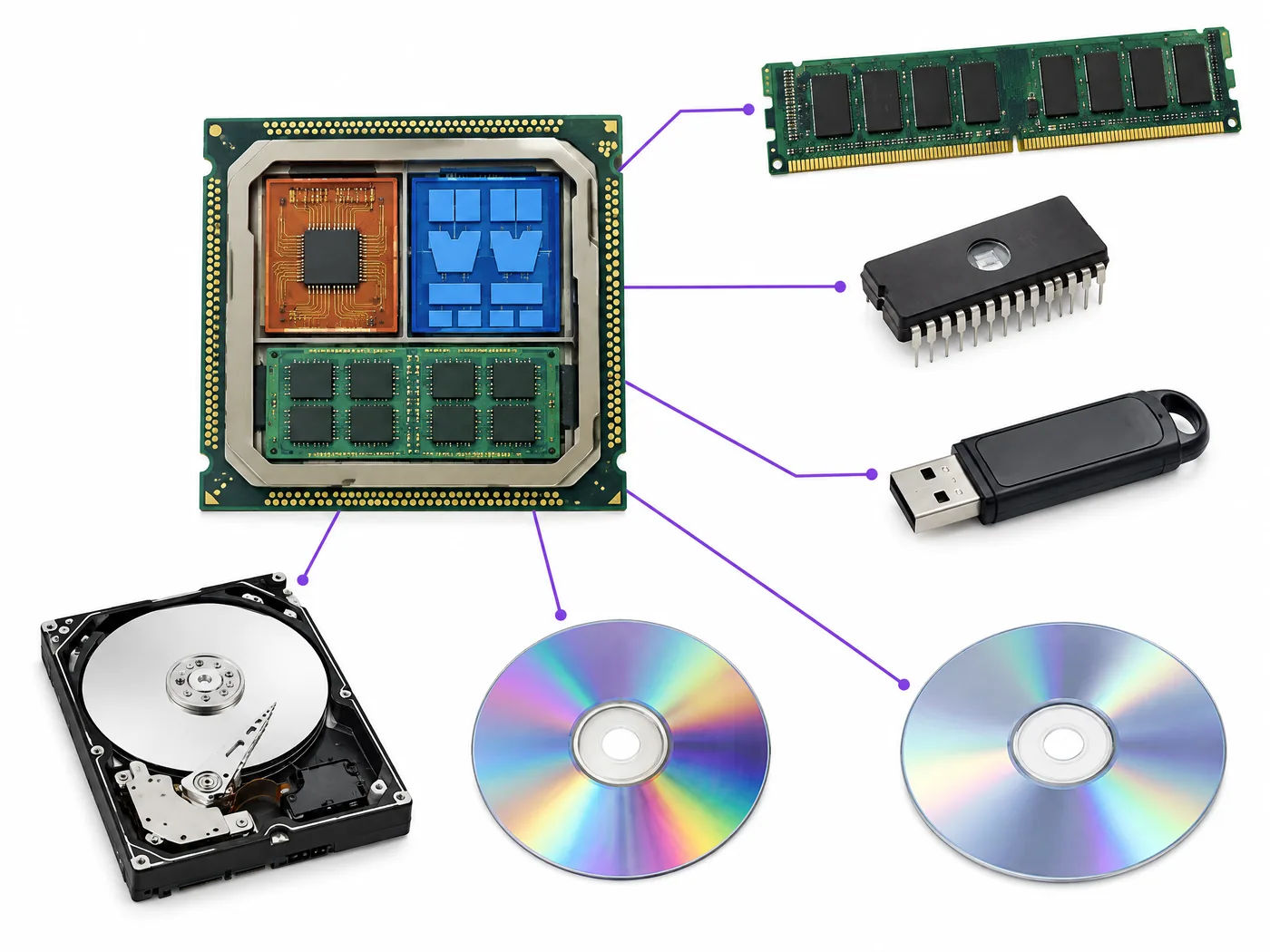
The internal processing and memory subsystem consists of four core elements:
- Central Processing Unit (CPU): Known as the "brain" of the computer. It houses the Arithmetic Logic Unit (ALU) for calculations, the Control Unit (CU) to orchestrate system timing, and internal Registers for ultra-fast temporary storage.
- Random Access Memory (RAM): Primary memory that holds programs and data currently being executed. RAM is volatile; all unsaved data is instantly lost if power is interrupted.
- Read-Only Memory (ROM): Non-volatile memory containing permanent factory instructions (such as the BIOS firmware) that cannot be altered or erased when the computer shuts down.
- Secondary Storage: Non-volatile high-capacity storage (Hard Disk Drives, Solid State Drives, Pen Drives, Memory Cards) used to permanently store files, software programs, and the operating system.
Computer Ports and Physical Connections
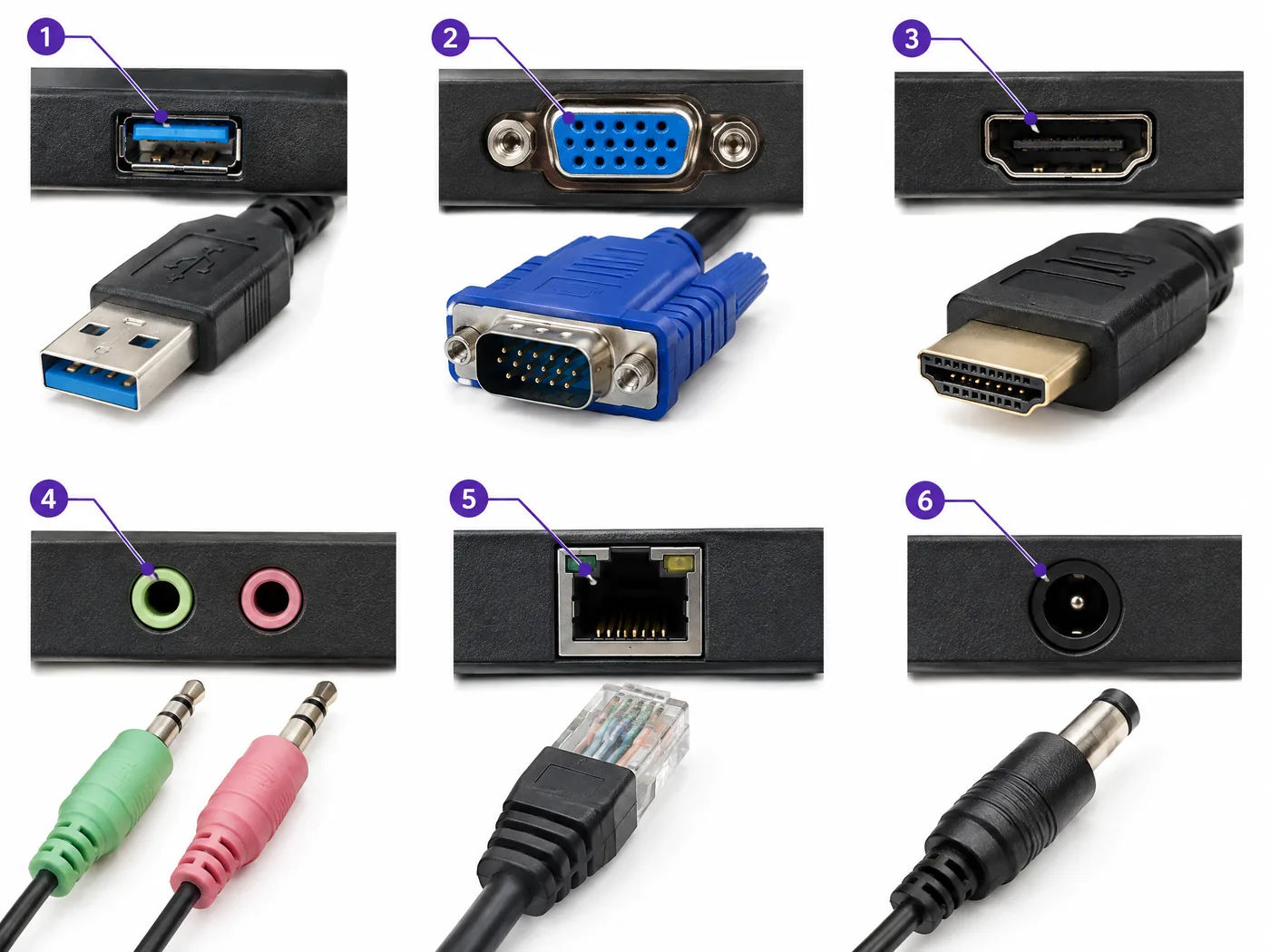
Ports are interface sockets situated on the computer casing that connect external peripheral devices to internal motherboard buses:
- USB (Universal Serial Bus): The standard port for connecting mice, keyboards, pen drives, printers, and smartphones. Modern versions include USB Type-A and reversible high-speed USB Type-C.
- HDMI (High-Definition Multimedia Interface): Transmits both uncompressed high-definition digital video and multi-channel audio to modern monitors, TVs, and projectors.
- VGA (Video Graphics Array): A legacy 15-pin analogue port used to connect older CRT/LCD monitors and projectors.
- Ethernet (RJ-45 LAN Port): Connects a network cable for reliable, high-speed wired internet and local area network connectivity.
- Audio 3.5mm Jacks: Color-coded sockets connecting external microphones (pink), line audio input (blue), and speakers/headphones (green).
- Power Connector: Supplies electricity from the wall outlet into the internal power supply unit (PSU).
3. Hardware, Software and the Operating System
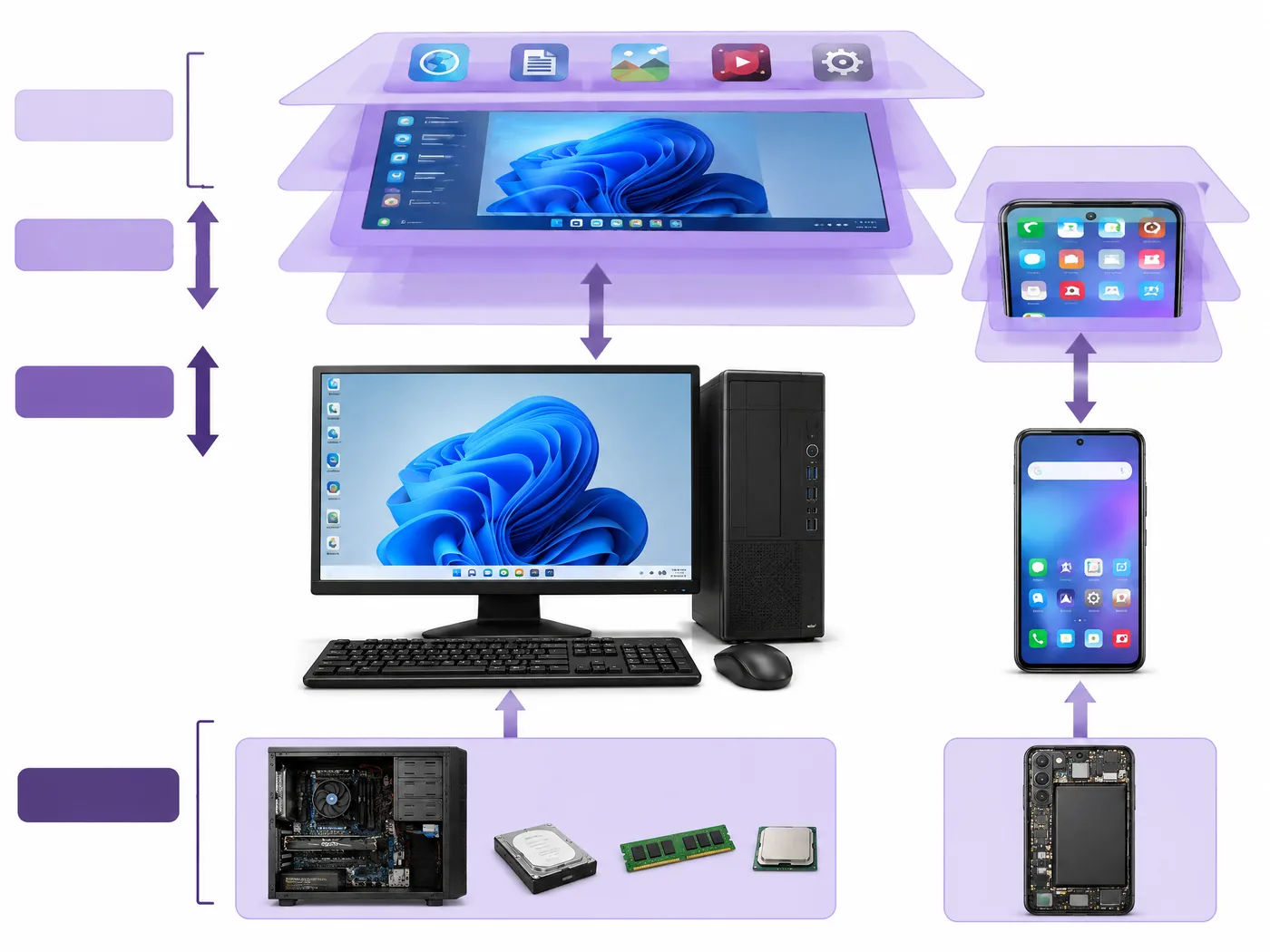
A computer cannot function through hardware alone. It requires layered software systems to interpret user intent and coordinate electronic circuits:
- Hardware: Tangible electronic circuitry, memory modules, processors, and peripheral machinery.
- Application Software: Programs designed to perform specific user-requested tasks (e.g., LibreOffice Writer for documents, Calc for spreadsheets, Chrome for browsing, VLC for media).
- Operating System (OS): The foundational system software that manages all hardware resources (CPU scheduling, memory allocation, storage access, device drivers) and provides an intuitive Graphical User Interface (GUI) for the user.
Computer Startup, Booting, Keyboard & Mouse Operations
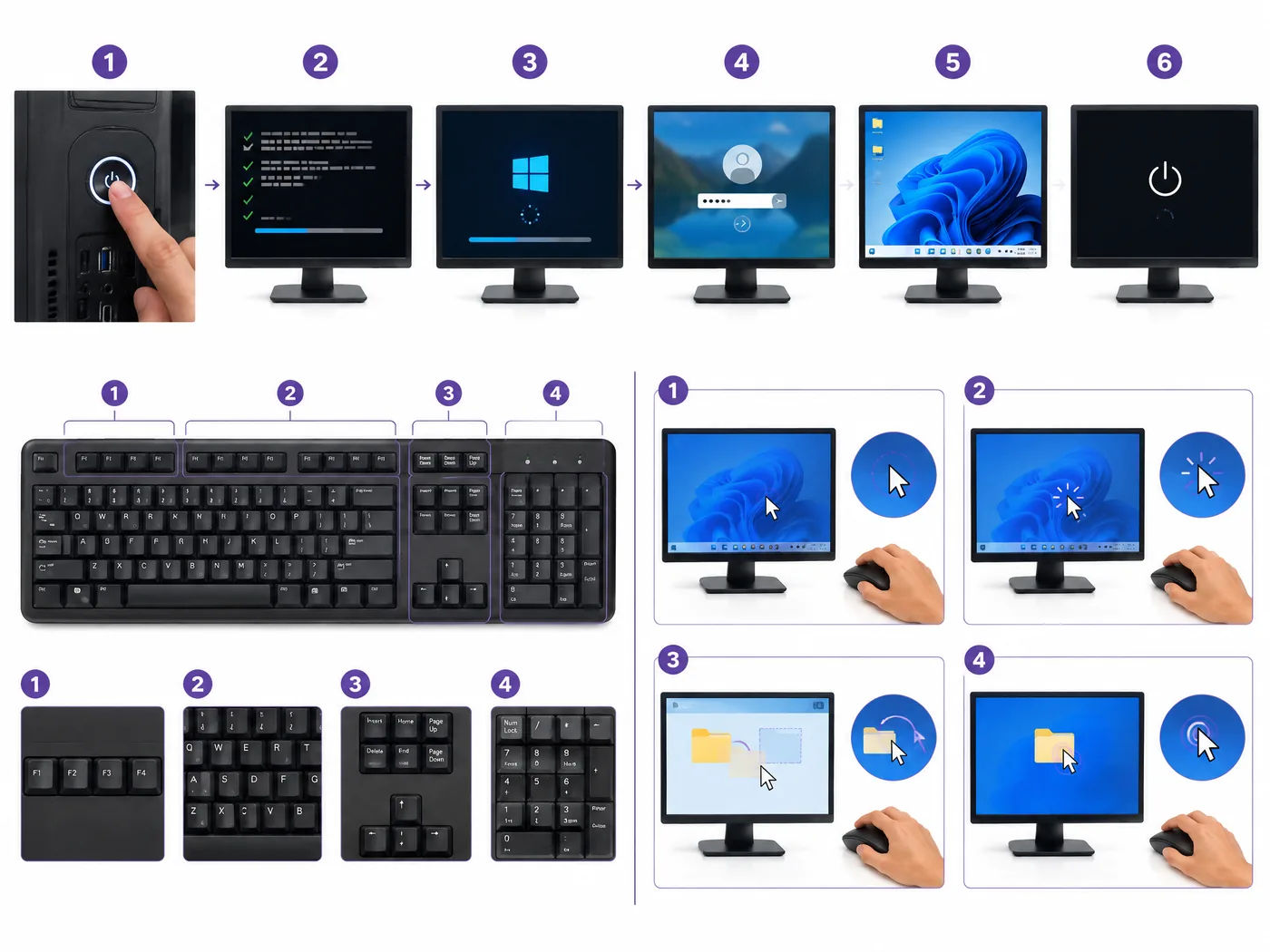
When you press the power button, the computer begins booting:
Keyboard Key Categories & Mouse Operations
- Function Keys (F1–F12): Trigger designated shortcuts (e.g., F1 for Help, F5 for Refresh, F2 for Rename).
- Control Keys: Modifier keys (Ctrl, Shift, Alt, Caps Lock, Tab) used with alphanumeric keys to execute commands.
- Navigation Keys: Arrow keys, Home, End, Page Up, and Page Down to move through documents efficiently.
- Command Keys: Backspace (deletes to the left), Delete (deletes to the right), and Insert (toggles overwrite mode).
- Mouse Actions: Point & Single-Click (select), Double-Click (open), Right-Click (context menu), Drag & Drop (move items), and Scroll Wheel (page navigation).
4. File Architecture, Hierarchy and Shortcut Commands
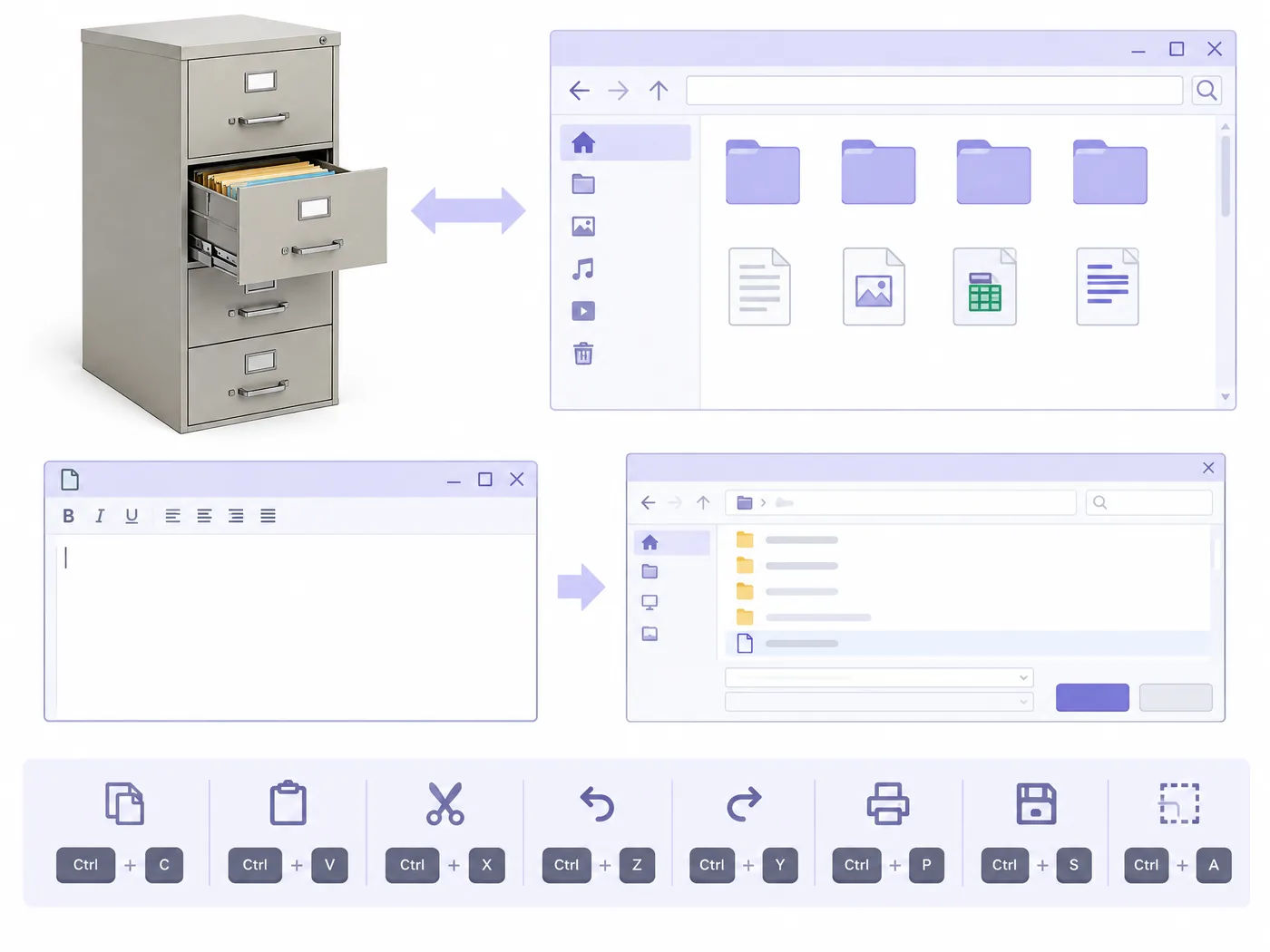
Every digital creation is saved as an electronic file identified by a filename and a period followed by a file extension (e.g., notes.txt, report.odt, grades.ods, slides.odp). Files are organized into hierarchical containers called folders (directories).
| Operation | Action & Keyboard Shortcut | Outcome |
|---|---|---|
| Save / Save As | Ctrl + S / Ctrl + Shift + S | Writes current edits to disk; "Save As" creates a duplicate with a new name/path. |
| Copy & Paste | Ctrl + C, then Ctrl + V | Creates a duplicate copy in a new location while preserving the original. |
| Cut & Paste (Move) | Ctrl + X, then Ctrl + V | Relocates the file from the current folder to a new destination folder. |
| Select All & Undo | Ctrl + A / Ctrl + Z | Highlights all contents; Ctrl + Z reverts the last immediate action. |
| Delete & Restore | Delete key / Shift + Delete | Standard delete sends items to Recycle Bin/Trash; Shift + Delete permanently removes them. |
Preventive Device Care and Maintenance
Computers contain delicate electronics susceptible to dust, overheating, and mechanical stress. Establishing consistent maintenance preserves machine health:
- Physical Cleaning: Clean keyboards with a soft bristle brush or compressed air to dislodge trapped crumbs. Wipe monitor screens with a soft microfiber cloth; never spray water or liquid cleaners directly onto panels.
- Safe Liquid Handling: Keep water bottles, tea, and coffee cups away from desks. Accidental spills short-circuit internal motherboards, causing irreversible hardware failure.
- Cooling & Ventilation: Ensure cooling fans and laptop ventilation slots remain unblocked. Never place running laptops on soft beds or pillows, which trap heat and cause processor overheating.
- Disk Cleanup: Periodically run Disk Cleanup tools to purge residual temporary files (`.tmp`), browser cache, and junk data that accumulate over time and slow down system performance.
5. The World Wide Web and Web Browsers
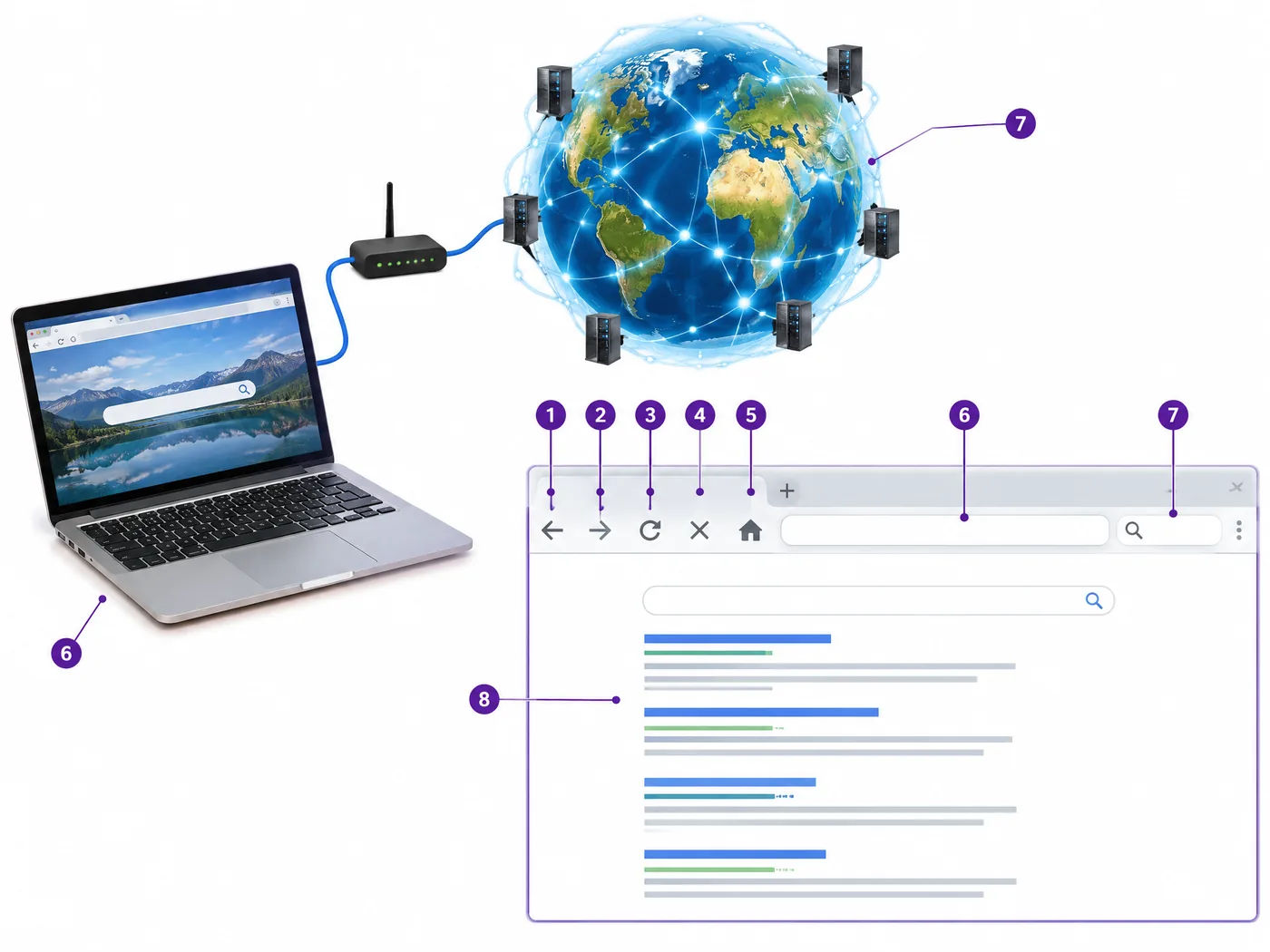
The World Wide Web (WWW) is an interconnected collection of multimedia pages and digital documents hosted on web servers globally. To view these pages, users run an application known as a Web Browser (e.g., Google Chrome, Mozilla Firefox, Microsoft Edge, Apple Safari).
Anatomy of a Web Browser & URL
- Address Bar: The input box where you enter a website's unique address, known as a URL (Uniform Resource Locator).
- Protocol (HTTPS): Hypertext Transfer Protocol Secure ensures that communication between your browser and the website server is encrypted. Always check for the padlock icon before entering sensitive details.
- Navigation Controls: Back (previous page), Forward (subsequent page), Refresh/Reload (fetches the latest page content), and Home (opens the default starting page).
- Tabbed Browsing & Bookmarks: Browser tabs permit multiple websites to remain open in a single window, while Bookmarks save frequently visited links for rapid one-click access.
Email Architecture and Communication Workflow
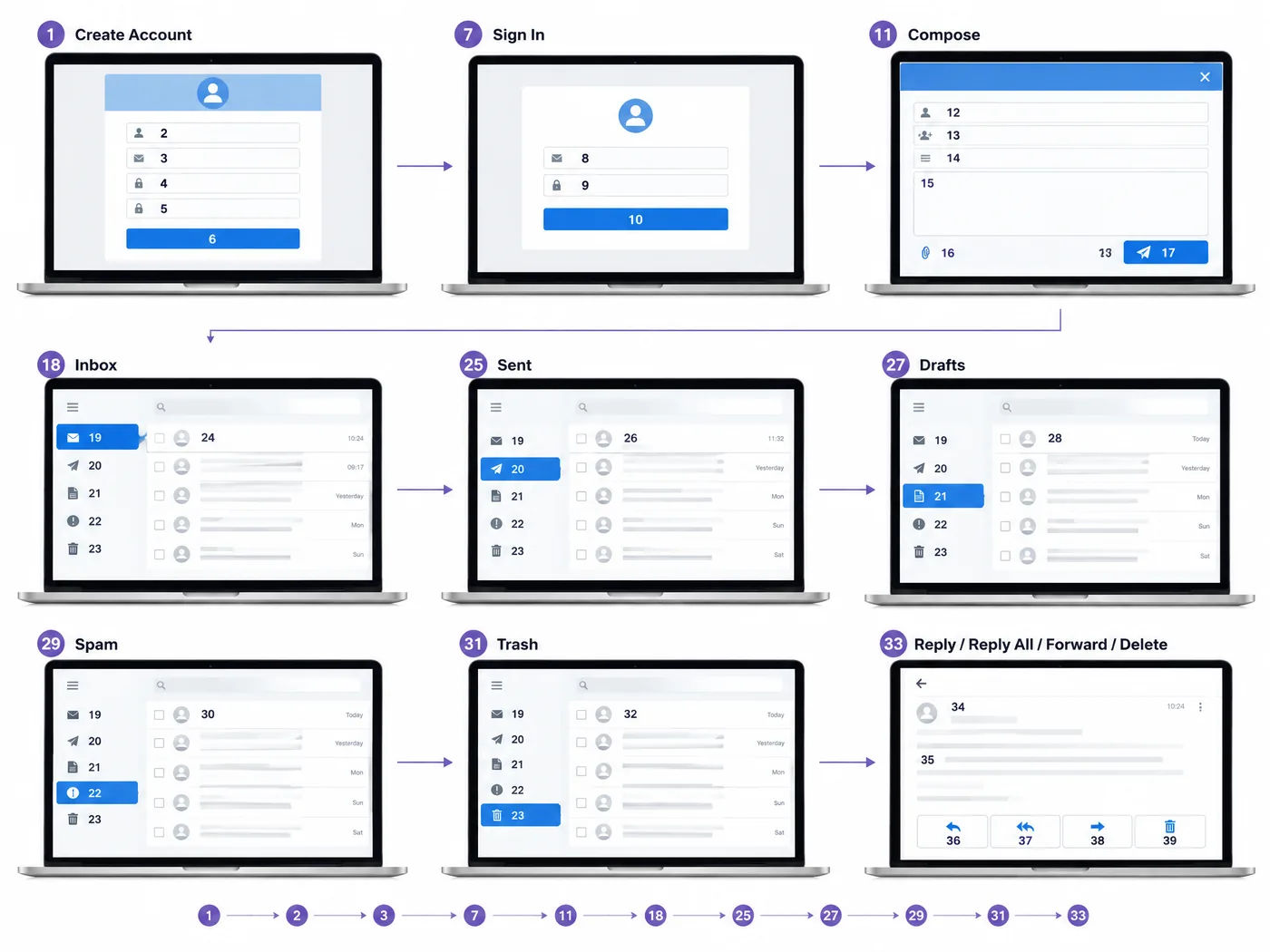
Electronic Mail (E-mail) is a quick, formal, and cost-effective digital messaging method. A standard email interface comprises:
| Field / Folder | Meaning and Appropriate Use |
|---|---|
| To | Primary recipient email address who is expected to read and take action. |
| Cc (Carbon Copy) | Secondary recipients who receive a visible copy for their information and tracking. |
| Bcc (Blind Carbon Copy) | Recipients receive a private copy without other recipients seeing their email address. |
| Subject Line | A short, precise summary describing the purpose of the message. |
| Attachments | Digital files (PDFs, spreadsheets, images) attached via the paperclip icon. |
| Inbox & Sent | Inbox stores incoming received messages; Sent stores delivered messages. |
| Spam & Trash | Spam isolates unsolicited advertising and suspicious mail; Trash holds deleted emails. |
Digital Threats and Data Security
Protecting computing systems and personal data requires understanding common online hazards:
- Malware (Viruses, Worms, Trojans): Malicious programs designed to corrupt files, replicate across networks without user permission (Worms), or masquerade as useful utilities to steal information (Trojan Horses).
- Phishing & Online Scams: Deceptive emails or fake messages that mimic official banks or schools, luring recipients into clicking malicious links or revealing confidential passwords.
- Data Protection Principles: Always construct complex passwords (combining uppercase, lowercase, numbers, and symbols), keep antivirus definitions updated, activate operating system firewalls, and never open unverified email attachments.